How to Make AI Videos on Promptchan
Promptchan Team
June 29, 2026
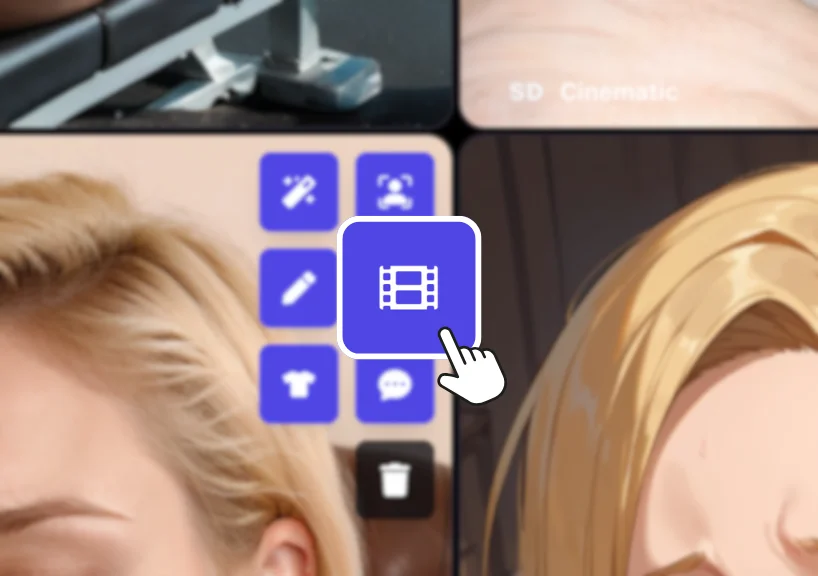
1. Two Ways to Make a Video
With Promptchan there are two ways to get a clip. You can type a prompt and get a video straight from words — no image required — or take a still you've already made and Animate it into motion. Text to video is the quickest way to go from an idea to a moving scene, and it's back and better than ever. This guide covers both, from your very first clip to extending your favorites.
New here? Start with the main Promptchan tutorial for the basics, then come back for video.
2. Text to Video: Create a Clip Straight from a Prompt
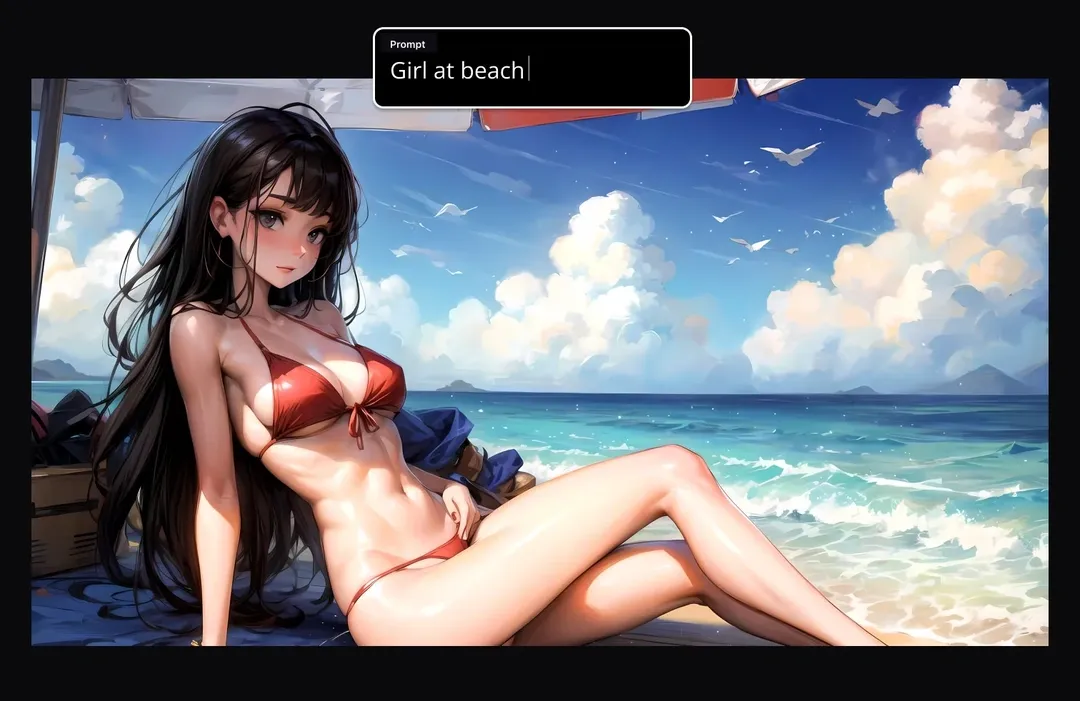
No image needed, just words. At the top of the settings panel, flip the Image / Video switch over to Video. The box at the bottom of the screen turns into your video prompt, marked with a little film camera, and the placeholder changes to "Describe your video…" Type the scene you want to see move: "a woman walking down a neon-lit street at night, the camera slowly following behind her."
Everything you'd tune for an image is right there in the panel, choose a style, add a character, set the orientation (portrait, wide, or square), pick your quality, and switch on sound if you want atmosphere. When it looks right, tap the film-camera button. Promptchan writes the opening frame from your words and animates it in one step, no separate image to make first.
One tip that makes a big difference: write for movement, not just a static description. Lines like "slowly pans across the room," "she laughs and glances away," or "wind moving through her hair" give the model something to actually animate, and you'll get livelier clips for it.
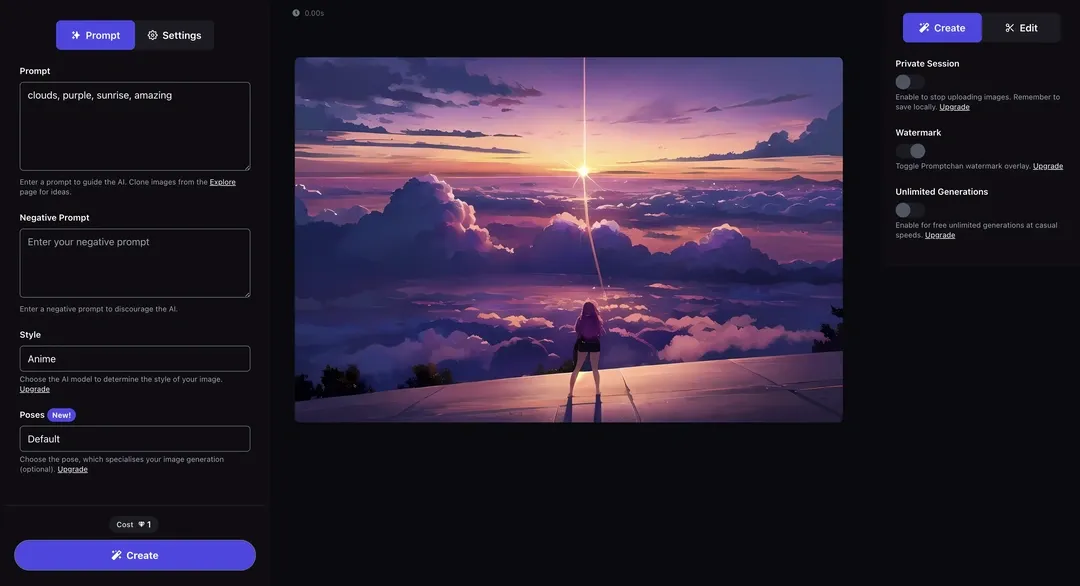
3. Animate an Image You've Made
Already have a still you love? Create an image on the Create page, then tap Animate right on it. A small panel opens so you can set the shot before you spend a thing, how it moves, how it's framed, the quality, and whether it has sound. Hit Animate and Promptchan uses your picture as the opening frame and brings it to life.
Leave the motion on Auto and it figures out the movement for you. Prefer to direct it? Switch to Prompt and say exactly what should happen, "she slowly turns toward the camera and smiles." The orientation is matched to your image automatically, so a portrait stays portrait, but you can override it if you want.
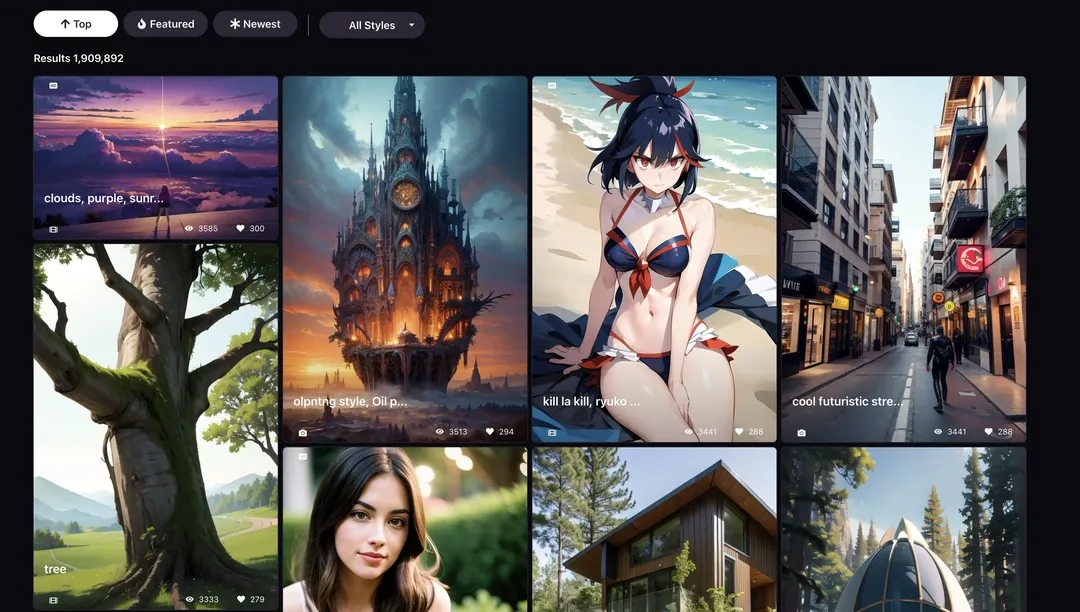
4. Animate Anything from Explore
Spotted something you love in Explore? You can bring that to life too. Open any image, hit Animate, and Promptchan takes you to the Create page with that picture loaded and the same animate panel ready, pick your motion and settings, then generate. It's the fastest way to go from "ooh, nice" to a video of your own.
(Quick note: Animate is for images. When you find a video in Explore you like, use Clone to reuse its recipe or Extend to continue it.)
5. Your Video Controls
Whether you're animating an image or starting from a prompt, the same handful of dials shape the result:
- Motion — leave it on Auto, or switch to Prompt and describe the movement in your own words.
- Orientation — portrait, wide, or square. Animating an image? It matches the source for you.
- Sound — switch on AI-generated audio to give the moment some atmosphere.
- Quality — Standard for a quick clip, or the top setting for the sharpest result.
Don't overthink it on your first go. Auto motion and the default quality are a great starting point, and you can always tweak and regenerate.
6. Make It Longer with Extend
Love a clip and wish it kept going? Extend continues it into a longer video. Keep the same pose for the smoothest, most seamless result, or switch to a new pose to take the scene somewhere fresh. There's even a freestyle option where you describe the motion for the next part yourself.
7. Where Your Videos Live
Videos render in the background, so you can keep creating while they cook. The moment a clip starts generating, the Video progress panel becomes available, it shows everything that's processing and everything that's ready, and finished clips drop straight into your feed.
One thing worth remembering: clips are only kept for 24 hours unless you publish them, so download the ones you want to keep.
8. Gems & Going Pro
AI video is part of Pro, and each clip costs a handful of gems from your balance, with a little more for higher quality, added sound, or a character in the shot. The cost is shown right on the video button before you commit, so there are no surprises. Pro unlocks full-length videos and Extend, refills your gems every month, and gets you the fastest results.
9. Start Creating
That's the whole flow: describe a clip from scratch in the Video tab, or animate an image with a tap, then extend your favorites and build a whole reel. The best way to learn is to make your first clip right now.
Related articles
How to Chat with AI on Promptchan
Learn how to chat with AI companions on Promptchan. Browse the Discover feed, start a conversation, pick her voice, create images mid-chat, and build your own custom AI girlfriend — a friendly beginner guide.
How to Buy Crypto for Promptchan AI
A concise guide on buying cryptocurrency to upgrade or purchase Gems on Promptchan AI.
Is Promptchan.ai Down? Get the Latest Updates
Wondering if Promptchan is down? Discover the official update on why Promptchan relocated its domain from Promptchan.ai to Promptchan.com. Get all the details here.
Services